Modify or revoke a second authentication factor
📌 CAS-MFA : the application for managing your factors (methods)⚓
You can at any time check the enabled methods and their configuration by returning to the CAS-MFA application.
In the example below, 2 methods are enabled : TOTP and the code grid.
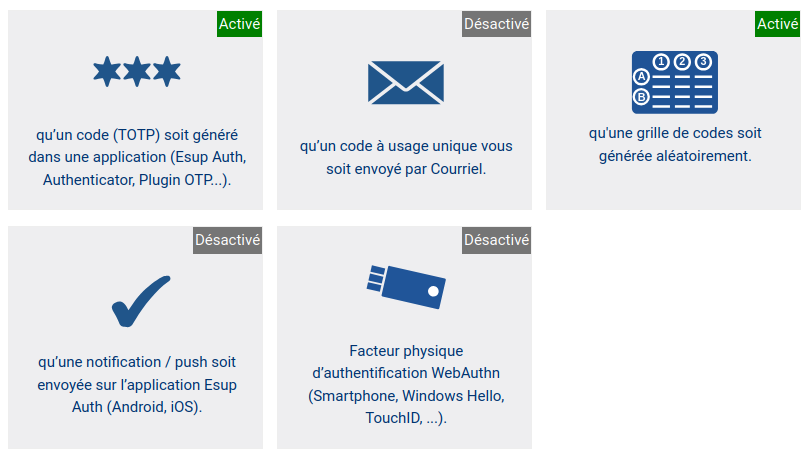
The revocation of a method consists of making the old codes generated by this method invalid (expire). Thus, only the new codes generated after the modification or reactivation of this method will be able to authenticate with it.
Revoking a method may be necessary, for example, in case of a change of mobile phone or email address.
Advice :
We recommend keeping 2 active methods, in order to have a "backup" method in case of problems with the one you will preferentially use.
To modify or revoke a method...⚓
To modify or revoke a method, click on its tile. Depending on the method, it is possible to re‑generate a secret (by revoking) the old one if needed. The slider also allows disabling the method so it is no longer used.
To modify or revoke a method, expand as desired :
Code TOTP⚓
Click on the three‑star tile indicating “a code (TOTP) is generated ...”.

The method editing page appears.
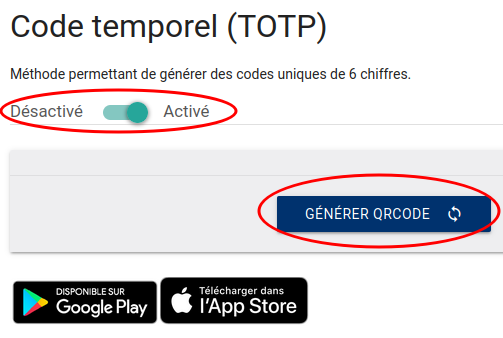
If you want to revoke the current secret and :
generate a new one to obtain new TOTP codes : click the
Generate QRcodebutton. This is a new activation of the method (see with KeepassXC or with Esup Auth). In your code generation application, you can replace the old secret with the new one (in KeepassXC, replace it in theSecret keyfield).no longer use this method : click the slider to set it to
Disabled. You can at any time perform a new activation, if desired.
In your code generation application : delete the old secret. It has been revoked: a 6‑digit code generated with it will no longer allow authentication.
Extra : Delete a TOTP secret in KeepassXC⚓
If you continue to use the TOTP, you can simply replace the Secret key .
If you stop using this method, you can delete the TOTP from your entry :
Case 1 : If your entry contains only the TOTP and no other password or information to keep, you can simply delete it by selecting it and using the
Deletekey.Case 2 : If your entry contains other information or passwords :
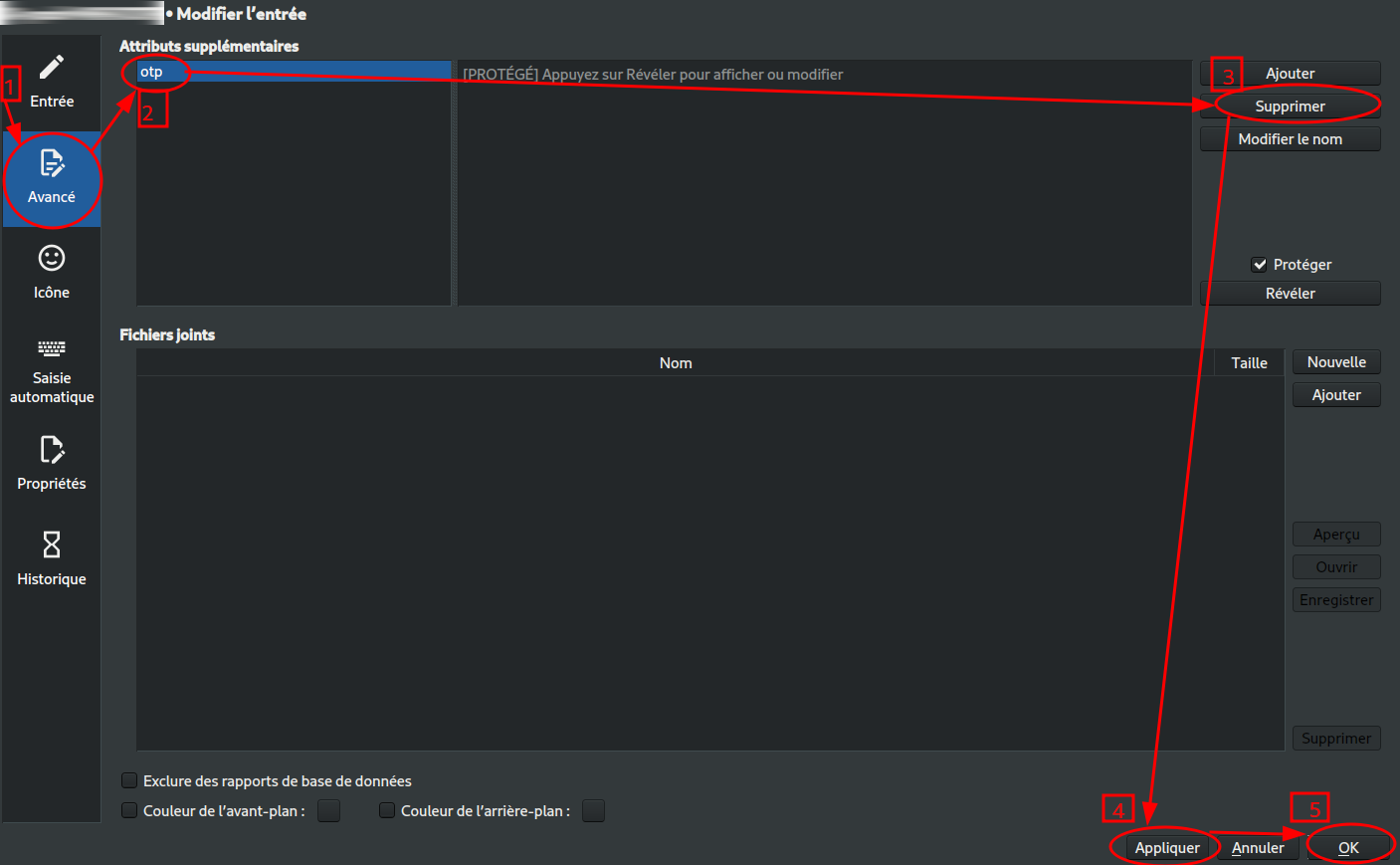
Edit the “entry” holding the TOTP: select it then click the
Entriestab,Edit entry....In the entry modification window :
On the left, click
Advanced.At the top, in the Additional attributes section, click the otp attribute to select it.
At the same level but on the right side of the window, click
Deleteto remove the attribute.At the bottom of the page, click
ApplythenOKto save.
Extra : Delete a TOTP secret in Esup Auth...⚓
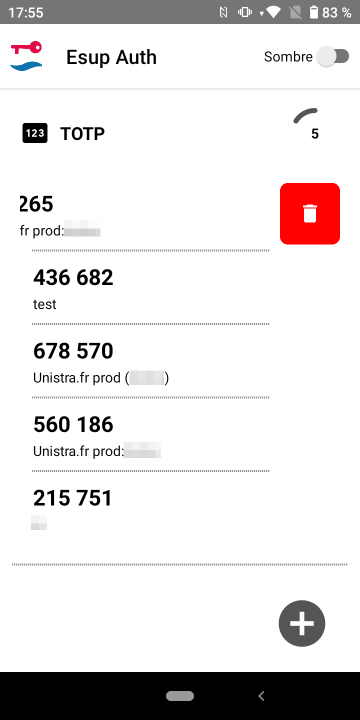
Obsolete TOTP secrets are not automatically deleted. To delete a revoked secret: press the corresponding entry and drag it to the left then click the trash icon to delete it.
Note :
If you have fully disabled the method, it will no longer be offered to you when authenticating via CAS.
Code sent by email⚓
On CAS-MFA, click the tile showing an envelope and indicating “a one‑time code is sent to you by email”.

The method editing page appears.
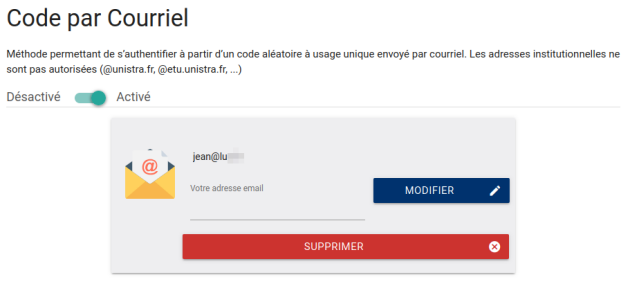
If you want to revoke the current email address and :
use another one to receive your future codes : enter the new address in the field labeled “
Your email address” then click theModifybutton. This is a new method activation.no longer use this method : click the
Deletebutton or the slider to set it toDisabled. You can at any time perform a new activation, if desired.
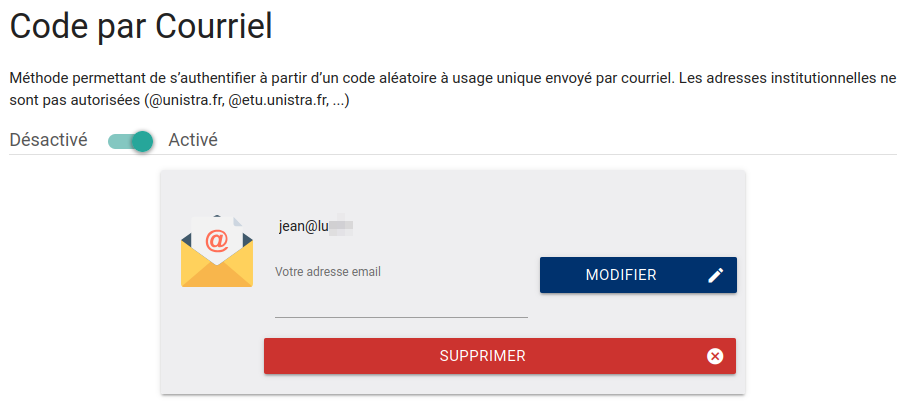
Note: No message is sent to the email address to indicate the end of its use.
Note :
If you have fully disabled the method, it will no longer be offered to you when authenticating via CAS.
Code grid⚓
On CAS-MFA, click the tile showing a grid/table and indicating “a code grid is generated randomly”.

The method editing page appears.
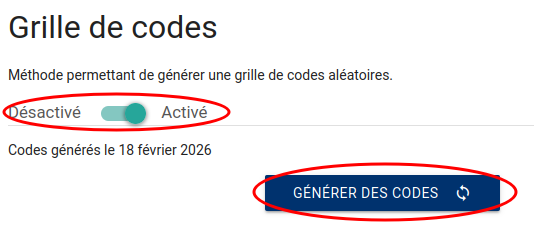
If you want to revoke the current code grid and :
generate a new one to obtain new codes : click the
Generate codesbutton. This is a new method activation. In your code generation application, you can replace the old grid with the new one (in KeepassXC, replace it in the input field of your attribute).no longer use this method : click the
Generate codesbutton to revoke the previous ones then use the slider to set the method toDisabled. You can at any time perform a new activation, if desired.Note: If you disable then re‑enable the method without clicking
Generate codes, the old codes are not revoked.
Extra : Delete a code grid stored in KeepassXC⚓
If you continue to use the code grid, you can simply replace the content of your attribute containing the old grid.
If you stop using this method, you can delete the grid from your entry :
Case 1 : If your entry contains only the grid and no other password or information to keep, you can simply delete it by selecting it and using the
Deletekey.Case 2 : If your entry contains other information or passwords :
Edit the “entry” holding the grid: select it then click the
Entriestab,Edit entry....In the entry modification window :
On the left, click
Advanced.At the top, in the Additional attributes section, click the attribute of your grid to select it.
At the same level but on the right side of the window, click
Deleteto remove the attribute.At the bottom of the page, click
ApplythenOKto save.Example with an attribute named “otp” :
Note :
If you have fully disabled the method, it will no longer be offered to you when authenticating via CAS.
Push notification (on Esup Auth)⚓
On CAS-MFA, click the tile with a checkmark indicating “a notification / push is sent ...”.
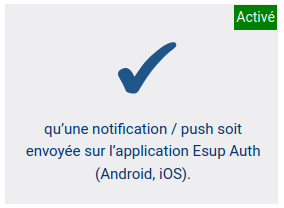
The method editing page appears.

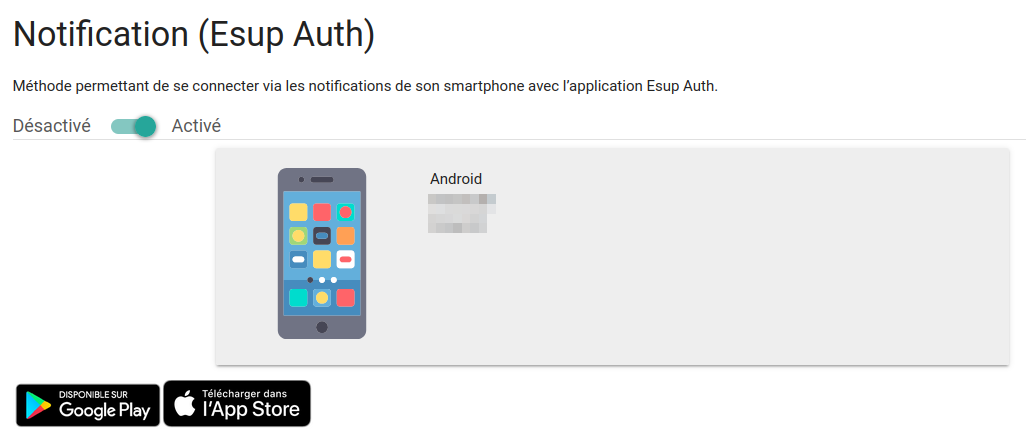
If you want to revoke the current push : click the slider to set it to
Disabled.You can at any time perform a new activation, if desired. This will be a new method activation.
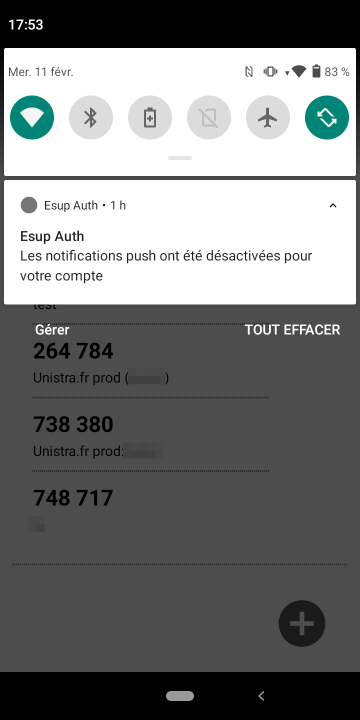
If notifications are active on your mobile, a notification from Esup Auth appears to inform you of the method's deactivation. For example :

Note :
If you have fully disabled the method, it will no longer be offered to you when authenticating via CAS.
Physical WebAuth factor⚓
Note :
Reminder: This method can be activated if you already use it for other purposes, for example for national applications. DNum does not provide specific support.
On CAS-MFA, click the tile showing a USB key and indicating “Physical WebAuth authentication factor (…)”.

The method editing page appears. Example with an active factor :
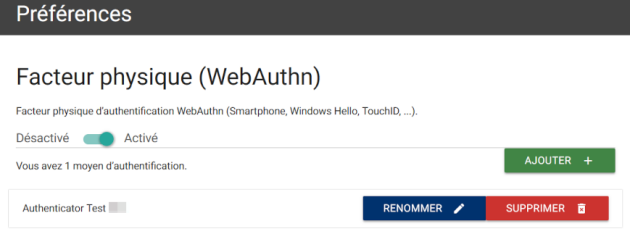
If you want to revoke the current physical factor(s) and :
add a new one : click the
Deletebutton associated with the factor(s) to revoke then click theAddbutton. This is a new activation of the method.no longer use this method : click the
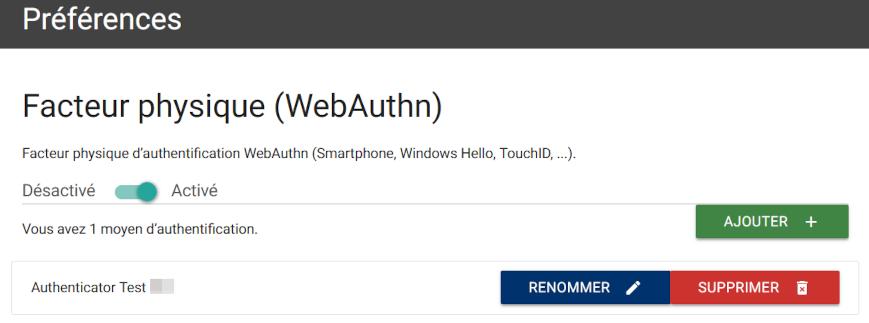
Deletebutton associated with the factor(s) to revoke then use the slider to set the method toDisabled. You can at any time perform a new activation, if desired.Note: If you disable then re‑enable the method without performing deletions, the old physical factors are not revoked.
If needed, delete the old secrets on your physical device (device or key).
Note :
If you have fully disabled the method, it will no longer be offered to you when authenticating via CAS.